Thursday, May 28, 2015

How I maintain my PCs Part 2

Here I will be explaining the rest of what I do to maintain my (Windows) PCs.  Procedures for other operating systems will differ.


 -Restarting your PC often or turning it off when you are done using it is debatable on whether or not it is positive on performance.  Really it comes down to personal preference.  I usually shut mine down in the evening, boot up in the morning and I manually sleep it during the day when I'm not using it.  My keyboard has "Wake", "Sleep", and "Power" buttons on it and I only had to change one BIOS setting to get the "Power" button to work, the other two worked automatically.


 -One of the easiest things is a disk defrag.  At least, it's usually the first thing I do after I get a system going and "finished".  Your hard drive reads and writes a lot of data and, believe it or not, it takes up physical space on a stack of specialized disks.  After a while after so many read-write-deletes your data will be scattered and your disk will have to spin more to access the data you want.  A defragmenting takes all that scattered data and re-organizes it.  You don't really get any more free space, but now your used space is easier to use.  You can see some improvement in the speed a system runs after a defrag.  There is debate on if you should defrag your SSD or not.  I guess they have limited read/writes and a defrag can use a bunch of them up.  I defragged mine once after initial install of all my software and I suppose I'll let it be for the rest of it's life.  Additional: they supposedly write data differently since it's not a physical disk and just solid state chips and a defrag isn't very effective.  Follow this File-Path to get to the Defrag included in Windows: Start-menu: All Programs>Accessories>System Tools>Disk Defragmenter.  *Please note that a defrag takes time.  That time depends on fragmentation, size of disk, speed of disk, and amount of data on disk.  Usually this operation is setup to automatically run at sometime in the middle of the night.  but if you're like me and turn off your PC whenever you are done using it, it cannot perform the scheduled task.
Here we see the disk was partially fragmented
 

Here is is running the operation.


 And here it is complete.  It makes several passes for each disk you do.  So if you don't need to use your PC for a while, that's the best time to run the defrag.


And here is a picture of a standard HDD just for fun.


 -Optimize windows for best speed.  This option disables all that fancy animated window/start-bar GUI-ness (GUI: Graphical User Interface) and returns it to a very basic Windows 95 look.  All that bizz is a lot for Windows to not have to think about and can make a notable difference on your computers speed.

Click on the "Adjust Visual Effects" 

Click the appropriate box


 -I do not run any toolbars on my web browser.  I disable and delete all of them.  I set my default search engine as Google.com and I also set it as my home page.  The browser boots faster, runs smoother and is a lot more stable.  I do not use Internet Explorer that comes default with Windows.


 -Start up.  I disable all unnecessary start up programs.  For example, I disable my virus scanner.  I only want to use that when I want to use it.  When it starts at start-up it slows my PC down considerably and when it is always running in the background it uses up RAM.  However, I keep Steam running because it doesn't seem to slow down my start up and I like to have it automatically sign me in and stuff.  Anyway, I disable all start-up programs I don't need.  It does wonders to you boot-up time.

 In the search bar on the start menu, type "MSCONFIG" then click the icon that pops up.

 Go to the "startup" tab and turn off everything you don't want to run when the PC boots!


  -System clean-up.  If you've never done this it could be a big deal.  If you do it often you wont notice anything really.  But it dumps out all the old files you don't need like trash bin and temporary internet files and what-not.  Follow this file-path in the Start-menu: All Programs>Accessories>System Tools>Disk Cleanup
For example: I had 399MB in my Temp folder and Disk Cleanup purged it.


Systems tools is where system Cleanup is, click on it.
  
It will check the system and ask you what disk to clean up.
 
  
Then you check what boxes you wanna clean up.
 
 hit okay and...

Bam!  It'll shut itself off when it's through and it's done.


-I disable remote-access.  Dis-sables my computer's ability to be remote accessed by another.  Its further peace-of-mind as far as system security goes and it's unnecessary software.  It is really only used for re-mote IT assistance that I don't use.  But it's like bricking over a door.

 
Right click on "Computer" and go to "Properties" 
This will take you to the Control Panel Screen you need to click on "remote settings"

And uncheck that box in the remote tab!


 -Last thing I do too is adjust my PC Power settings.  I turn my PC off every night so I adjust it to best performance and basically disable any kind of power saving setting.  If you are running a laptop or a server that is always on you will want to be more power saving conscious, but since my PC is for performance that is how I run it.  Go to your Control Panel, click on "System and Security" then click on "Power options".  Then check the box for best performance, or whatever suites you and your setup.  You are on your own for anything more complex than that.  You can click on "Change Plan Settings" and fine-tune your power plan further and fine tune it to meet your needs exactly in the "Change Advance Power Settings".

Go to the power settings in the control panel and click on "Highest Performance"

Well, that is pretty much it.

End.

Tuesday, May 19, 2015

How I maintain my PCs Part 1

  Hardware is pretty solid.  Usually not much can go wrong with it.  Most every component I've installed in my builds has been previously used; whether it was scavenged or purchased second-hand.   Usually what gums up a system is the software.  Dust build-up is also a problem.  All of the old PCs I have taken apart have had dust caked into the heat-sinks, around the RAM slots, in and around the CPU socket and all over the various cooling fan blades. Refreshing the thermal compound can work wonders too.


 The problem with dust is that when it cakes onto things it hinders performance by holding heat in.  Heat is hardware's enemy.  It also taxes fans by adding weight and bulk to their blades so they don't spin as fast nor do they move as much air.  Dust is an easy thing to remedy.  I don't have access to compressed air, unless I take my hardware to a friend's place or buy a "can of air".  I generally take apart the system, and use q-tips, a vacuum and even my own breath to clear out dust. Hot water helps wash out heat-sinks.  (Remove all electronics from the heat-sinks first!)  If you're not comfortable with that I recommend some compressed air, take the side cover off and blow out as much dust as you can.  You can also use a vacuum, just be careful of static.


 I have become a fan of Arctic Silver thermal compound.  I use it on all chips that have board-mounted heat-sinks.  It's not a paste so if the heat-sink doesn't attach in some way don't use this.  I bought the kit that comes with the compound, the cleaner, and the conditioner.  The cleaner is awesome at removing old dried up compound and thermal pads.  The conditioner just finishes off prepping the chips surface to receive the compound.  My second tube of compound is already almost gone; I use it so much.  It maximizes the heat transfer between the chip and the heat-sink.  There are countless studies you can find online of the temperature drops you gain just by re-pasting with Arctic Silver.  A cool system is a stable, smooth, and fast system.  Applying thermal compound isn't something I'd recommend to a beginner, but you've got to start somewhere.  I started on old computers that I wasn't afraid of losing.  Don't take that to mean that if you mess up applying thermal compound your PC is toast.  But overheating your PCs can ruin it's components!  Many motherboard have auto-shut off features when parts become too hot.  There are plenty of YouTube videos on best methods for this.  If you're interested I'd suggest looking them up (search "applying thermal compound on a CPU") and watching a few different ones before you give it a go. 

     *Something to keep in mind about all of this software that shows temps!  These programs access your hardware's built in temp sensors and are not always completely accurate.  From my research online, the best way people have tracked system temps is by physically probing each spot they want to read and using some sort of display screen or fan controller display to read and monitor their system's temperatures.  However, that does not mean that using just this software wont help you maintain your PC's temp!*

 This is SpeedFan.  Great for showing your current system status and hardware usages.  It has other features too, but I haven't delved too deeply into it yet.

 Here is temp data in a graph on SpeedFan.  Good for finding your hotspots and seeing how quickly it heats up and cools down under load.

 CPU-Z is great for getting specific system data.  Here it is pulling everything you'd ever need to know about my CPU.  As you can see, you can get the same kind of detailed info on most of the hardware installed.  This helps you get the proper drivers if something isn't running quite right.


 You may have seen this one on a previous post.  This is OpenHardwareMonitor.  I like it because of how simply it displays so much information.  It's like SpeedFan and CPU-Z had a baby.  You get hardware models, temps, voltages, processing speeds, and even life of SSD's.  The "Value" column shows real-time readings and the "Max" column shows where the system has maxed since opening the software.


 -I am a bit of a perfectionist when it comes to my PC's so I use the above software and methods to optimize my PC cooling.  The Little Mule's HDD was getting way too hot and I detected it with SpeedFan and was able to do some case modding that allowed my to actively cool it.  When I was done it was to coolest component in the case.  I noted how hot my GeForce 9800 GT was getting in the MKIV with OpenHardwareMonitor and took the appropriate action to remedy the problem.  I've been able to find all the drivers I have ever needed by using CPUZ and OpenHardwareMonitor to find the exact part model numbers and names.-


Another good way to check on your system is Windows 7's own system rating screen.  It isn't the best because you can run it twice with zero hardware changes and get slightly different results but it gives you a good idea of what is bottle-necking your system.  We can see here that my Dual-Core CPU is bottle-necking mine.  I would very much like to upgrade my CPU to a Core 2 Quad in the future.  It runs the rankings on a scale of 1.0 to 7.9.  Why 7.9?  Beats me.


 Here is a screen-shot of my PC running Warframe in windowed mode.  Full screen taxes the GPU a little harder but it's nothing the GeForce 9800 GT can't handle, and you can see how good it looks even for running at lowest resolution.  Warframe has been around since 2012, but its a good test of my system because I originally estimated it to be good for PC games up to 2011.  Also notice how my windows and start-bar look like they came from Windows 95.  You can optimize Windows 7 for best performance by tweaking a couple settings.  One of them turns off all the unnecessary animations and windowed effects that come active as default on Win7 and it makes a difference on how smooth a system like mine runs.  This is old-school hardware (in the PC world) running here so optimization makes big differences.  Part 2 will contain some speed-enhancing optimizations you can do as well as furthering your system maintenance.


Saturday, May 16, 2015

The MKIV comes to life again!

I finally got a PSU!  I also got a good fan controller, and I upgraded the cooler on the GPU.  AND! I got a 5.25" bay drive drawer!  It's the handiest little thing ever!

The 800 watt PSU I scored a deal on is a semi-modular model.  Meaning the main ATX power connections are built in, but the rest are optional.  Makes for much easier cable management.  You just plug in the cords you need!


Massive Duel 14cm fans on top for exhaust.  (thermodynamics say heat rises so top exhaust only makes sense)  Every other fan intakes.  Theory is that a positive air pressure in the case helps keep dust build-up down.

 Bay drawer keeps handy stuff tidy and nearby!
The six knobs control six of the 10 fans.

 One SSD with the OS and games installed, one HDD for data and archive.
This is it complete and functioning before the GPU cooler upgrade.

Close up of the internals prior to the GPU cooler upgrade.

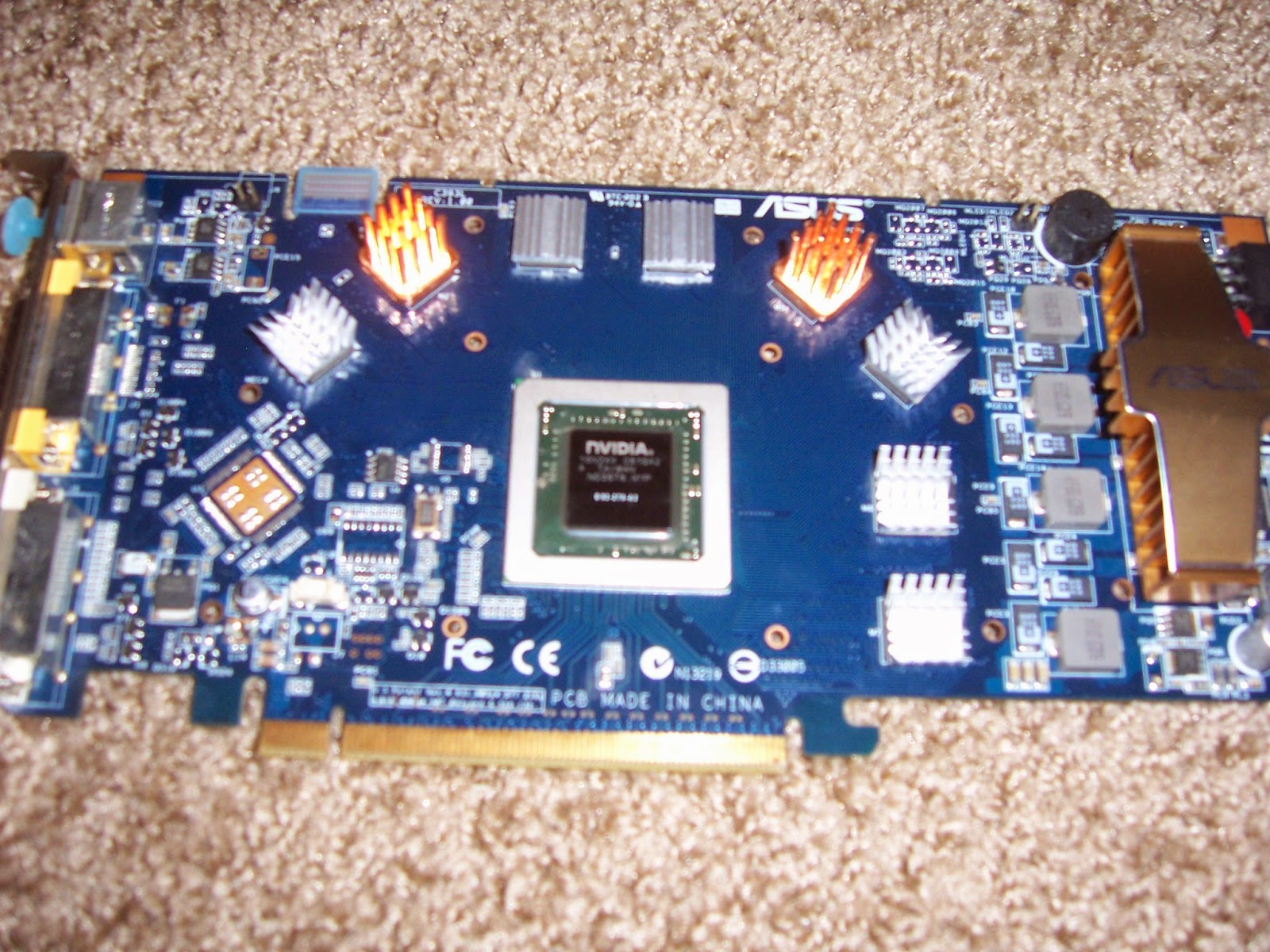
Asus Geforce 9800 GT with the stock cooler removed.

 The new cooler and components.

Vram mini-heatsinks and the GPU chip cleaned up 

After applying some Arctic Silver thermal compound the Cooler gets installed.

 The 92mm fan in the card and the card installed in on the MOBO.

Bad close up of the cooler through the side window.

I removed the WIFI card because I wasn't using it and to make more room for this huge cooler.
There is a lot of data here, but the main one is the GPU core temp that maxed at 154.4 degrees F during load.  Unloaded it ran at about 117 degrees.  I had shut down the game I was playing just a few minutes prior to taking this screen shot, thus the 136.4 degree current temp (it was cooling back down)

Here we see it only maxed at 116.6 degrees F (cooler than idle temp with the stock cooler!) and it was cooling down when the screenshot was taken, showing 104 degrees.

The MkIV is running great, I couldn't be happier!  And the GeForce 9800 GT is doing everything I've been asking of it.  I have also been playing Black Mesa with all settings maxed it is flawless.  I would eventually like to upgrade to dual GPUs, probably Radeon HD 7000 series cards, and get a 3.0 Core 2 Quad, and double the RAM.  But for now it's perfect.

End.


Monday, May 4, 2015

Jojo's software choices for the PC builder

Here are what I consider must-haves in the way of software for any of you PC do-it-your-self-ers.

First of all, you need access to the internet and a data medium.  Be it CDs, jump drives, what have you.  Sometimes your freshly assembled PC isn't going to recognize it's own hardware and you may or may not have the CD of drivers from the manufacturer.  Laptops and USB jump drives serve this purpose for me.  Tricky thing is, if your Ethernet port is not working and you don't have the drivers you will need the internet to fix your internet!  This actually happens too.  The PC my friend and I built for him didn't recognize it's own ethernet port after OS instillation and he didn't get a drivers disk with his MOBO because it was a manufacture refurb.  Our conversation via TXT messaging went something like this:
"My ethernet isn't working.  I go into the control panel and it says there is no networking hardware installed."
"You need the drivers for the motherboard."
"Where do I get those?"
"The internet"
"So I need the internet to fix my internet?"
"Yes."

I then went to the manufacturer's website and downloaded all of the motherboard's utilities and driver packs to a jump drive so that we could get him online.  The first thing we did was install the ethernet driver and re-boot.  It automatically hooked itself to the internet.  I finished installing the rest of his drivers, sounds, USB 3.0, GPU, etc. and reboot again.  Then I moved over copies of my favorite programs that I had on my jump drive, then we went to ninite and got the rest.  He reports today that his PC is running flawlessly and seems very excited about it's performance.

Once you've got your PC assembled you need an operating system.  If you have a dual core processor or better you will want a 64 bit OS.  If not, you'll need a 32 bit OS.  Windows XP will only recognize 3GB of RAM so keep that in mind when you are building older PCs.  I myself find it very useful to have a legacy computer around.  I have floppy drives and zip drives.  Floppy drives are important in older systems.  I use my legacy system for old-school gaming and utilities.  Costs practically nothing to assemble and with a little know-how it can be a very effective computer.  I was burning full Data DVDs in 7 minutes flat.  Sure newer hardware could do it faster but not for the same cost, which was nothing.  Most PC users will find an old tower becomes useless with age and is pretty well the right track of thinking.  They fill with dust, get cluttered with programs and just can't keep up with what the internet has to offer these days.  And let's face it: most of us have a computer so that we can internet.  That's basically all my laptop is to me: an internet machine.

Okay I've gotten off-track somewhere...
Operating system!  Yes!

You need an OS for your machine.  My favorite is Ubuntu.  Ubuntu is a free distribution of Linux (great thing about Linux is it's free!  It's software is free!  The updates are free!  There is so much free it hurts when you think about all the money you've spent in your life on software!  Ubuntu is very user friendly, extremely stable and I think my laptop updates at least once a week.  It's got it's quirks though, so be ready for that.  Sometimes the update won't run so I have to run it manually in the command terminal.  It's pretty easy, the Ubuntu website has everything you need to know on there.  Built into the OS is a software center that you can pretty well just search what you need, find it, and download it for free.  Not everything is free.  But most things are.  Like Libre Office.  Just like Microsoft office but free.  Gimp is similar to Photoshop but free.  You can see where I'm going with this.  Also it is less prone to viruses.  I've never had a virus or malware or adware on my machines running Ubuntu.  Most of them are coded for Windows so that right there is a great line of defense. 

I have the most experience with Windows XP.  That is another reason I keep a legacy machine around that runs it.  But I don't recommend it for modern day use to the average user.  I use it for my favorite old games and it's a tank at the utility type-stuff I do.  Microsoft no longer supports it so there could easily be holes in it's security and functionality that will never be patched.  I have heard of some folks who made or are making a service pack 4 update to keep XP going.  Haven't looked into it much though.  Yet.

Windows 7 is the thing to have right now for gaming.  You can game on Steam on Ubuntu but it does have limited hardware support and I don't have much experience gaming with it.  Avoid Windows 8 and Vista at all costs.  Yikes.

Okay, enough blah blah, here's what you came here for:

Ninite.
A friend of mine asked me if I had ever used Ninite and I was like, "Holiday who-be-what-ey?"  Go to their website, check all the boxes of the programs you want, click "get installer" and wait.  Whammo!  everything all at once.  Brilliant.  Their website is super: https://ninite.com/

Internet explorer is good for one thing: downloading a better web browser.  I use Firefox.  A million times better than IE and I favor it over Chrome.  Chrome is RAM hungry and seems to be less stable (in my experience anyway) So do yourself a favor and use Firefox.  Also, avoid toolbars.  They are the enemy.  They take up space and bog down the browser.  Here's a link to their download page: https://www.mozilla.org/en-US/firefox/new/

Get Foxit reader.  It's a PDF viewer that is lightweight and runs smooth.  I'm a big fan.  It's perfect for all the hardware manuals I download and the search feature is quick too.  Here is their home page:
http://www.foxitsoftware.com/Secure_PDF_Reader/

Libre Office is basically free Microsoft office.  Yes it's a little different as my wife will insist (who primarily uses my Ubuntu powered laptop for her school-work) but it's fully compatible and most importantly: free.  Here is their main page: https://www.libreoffice.org/

AdAware is a great free virus and malware scanning and removal program.  It's a pain weaving through all the hoo-ha to get it up and running though.  They throw in all this BS about paying them money to upgrade to a better version and you have to enter your email, wait for the code to come to you, then enter that code in the program before it will work.  They do this so they can cram more "Buy the upgrade version" spam down your throat.  I know it sounds lame, but it's good software.
Here is their homepage: http://www.lavasoft.com/

If AdAware doesn't sound that great to you get SpyBot Search and Destroy.  It's similar in it's function but really bogs the system down while it's running.  And it's programmed to run on system boot up.  I usually disable all un-neccisary boot up instructions to optimize for speed.  Here is their homepage: https://www.safer-networking.org/dl/

Rufus is awesome.  It's for turning USB jump drives into bootable drives.  Makes installing OSs a breeze and eliminates the requirement for ROM drives.  (Faster that a ROM drive too)  Their website is odd.  But here it is: https://rufus.akeo.ie/

CD Burner XP is the best disk burning software I have ever used.  If you need to make Optical disks, get this program.  Here is their website: https://cdburnerxp.se/en/home

WinCDEmu is for mounting ISO images.  It's so simple it's stupid.  Here's there main page: http://wincdemu.sysprogs.org/

7Z:  This is the best compression program out there that I've found.  It will do everything from .zip and .rar to .7z and .iso files (yes!  you can create or un-compress disk image files!)  Here's their page: http://www.7-zip.org/

OpenHardwareMonitor is a very handy utility.  It can give you real-time stats on your hardware.  It'll read temp sensors, display hardware model numbers, and show chip usage.  I use this to identify hardware such as MOBO model number to aquire correct drivers, exactly what CPU is in the socket, and temps in the case.  Runs off an executable so it's portable too.  Here's a link:  http://openhardwaremonitor.org/

CPUz is similar to OpenHardwareMonitor.  It doesn't show temps or usage but it does show model numbers and specs.  And it'll show you RAM data too.  Another very handy program if you assemble computers from old parts like I do.  http://www.cpuid.com/softwares/cpu-z.html

Speedfan is great too.  It will show temps and fan speed and stuff.  It'll also let you control fan speeds.  It has some other advance features like overclocking and stuff that I've never touched.  Here's the homepage: http://www.almico.com/speedfan.php

If I come across more I'll be sure to post them.

End.

Monday, April 13, 2015

Hardware basics according to me


I helped a friend last week assemble a bran-new computer and he was interested to learn how it's done.
A quick search on the Google machine showed mediocre results for learning PC basics so I thought a quick write-up would be in order. I started tinkering on computers when I was in Jr.-High, and in high school I built my first computer. It was just school-tech leftovers that they used for the students to practice on but I had a pretty good start to this hobby of mine.

There are two parts to a PC: hardware and software. I'm not much on software and most of it these days is pretty user-friendly and simple so I'll focus on hardware for this write up. Basic parts for a system include the Motherboard, the PSU, CPU, the RAM, the GPU, the HDD, and the optical drive or ROM.


 The Motherboard is where it all comes together. Its what flows all the data from on center to another. There are various ports, expansions, jumpers, chips, etc. Main components of the motherboard are the socket, the DIMMs, the IO, the PCI expansion ports, chipset, SATA, IDE, various headers, jumpers, and a battery. They come in various form factors and vary widely in features and capabilities.


Pictured above is the MOBO's Model Number (very useful for finding specs drivers and QVLs)
The socket is where the CPU installs. You can only install compatible CPUs into a socket.


DIMMs are where the RAM installs.

  
The IO are the ports on the rear of the motherboard for plugging in peripherals such as your keyboard, mouse, speakers, etc.


The PCI expansion slots are where additional functionality can be installed such as discrete graphics, TV cards, WIFI cards, etc. There are PCI, PCIe, PCIe4x, PCIe16x, AGP, PCIe2.0 and PCIe3.0. PCIe16X, 2.0 and 3.0 are backwards compatible. Your card will run properly, but the bandwidth is dumbed down to match the slot it's in.  (Pictured above are PCI slots and the brown one is an AGP)


The chipset is the main chips that direct the flow of data between the ROM, RAM, and CPU.  

There are various headers for USBs, Audio, fan headers, and power switches with their associated LED indicator lights. The USB headers are used for front mounted USB ports and card readers. For MOBOs with built-in audio you can connect front audio jacks to those audio headers. Then there is the header for the power switch, reset switch, power LED and HDD led.

There usually are various jumpers for certain feature control. I have a MOBO that allows you to limit CPU FSB speed with a jumper. Most MOBOs have jumpers to adjust power output to USB headers. One of my PCs I can charge my cell phone with the USB even if the PC is powered down. And also another important one is the BIOS reset jumper. Helpful if your BIOS become corrupted or you change a setting that doesn't work out.

The battery is important. It may just be a stupid little button battery but it's what keeps the system clock running, and the bios settings saved. I have a MOBO that I used for a while, then tucked back in the box for a later day. I recently got it out to use it once more and when I booted it up it had it's old settings still and the time was correct.

Two Fan headers (the white plugs)

SATA and IDE are the interfaces in which the storage devises are controlled. SATA is the newer, faster interface. IDE (or PATA) are the old interfaces. They were the big ribbon cables that are so obnoxious.

SATA (top) IDE or PATA (bottom)

The difference between an old IDE ribbon cable and a newer SATA cable.

Pictured above is the BIOS chip


I neglected to take a photo of a PSU, so apologies for that.

The PSU is simply the power supply (unit). They can come in several form factors and typical power output is read on the PSU as watts. There are standard, semi-modular, and fully-modular PSUs. A PSU can have any number of power outputs on it. Motherboard power, CPU power, Molex connectors, SATA power connectors, PCIe power connectors, etc.  Modular models help keep the interior of the case clear of a mess of wires.  There are also power efficient models rated bronze, silver, or gold for those of us interested in saving some money on our electric bill. I see them as a good option if the PC is in use often, runs all the time as a server, or if you have a computer lab and run many PCs. They are also more expensive. Hence why I've never owned one. That, and my PCs or only powered on for as long as I use them.

 
 Old AMD Athlon XPs on top, Pentium 3 and a Pentium Celeron in the middle and two Pentium 4s on the bottom.

The CPU is the brain of the Motherboard. Raw data goes in and calculated data comes out. When you execute a program the data is received by the CPU as a set of instructions. The CPU executes those instructions. There are single core, duel core, triple core, quad core, six core, and 8 core CPUs. Some CPUs have integrated graphics processors and AMD makes one with 12 cores. 4 CPU cores and 8 GPU cores. CPUs can only go in their associated sockets. AMDs series of am2, AM2+ and AM3 sockets are backwards compatible. You may use an AM3 processor in an am2+ socket, it just dumbs down the Front side bus speed to the socket's limit. There are two speeds to consider with CPUs. The CPU's speed itself, and the Front Side Bus speed. The speed of the CPU is how fast it can make calculations or run sets of instructions, or a better way of saying it is how quickly it can process data. General rated in ghz. The front side bus is how fast it can transfer that data to other parts of the motherboard. The more cores mean the more instructions or calculations it can do at a time. The faster the ghz the faster it makes those calculations or finishes those instructions. A duel core CPU can accomplish a task faster then a faster rated single core because it can have 2 cores work on it together. The enemy of a CPU is heat. CPUs come with coolers usually made of aluminum or copper or both. They draw the heat off the CPU chip so it can maintain it's stability. Sometimes if your computer is running sluggish or crashes for no apparent reason it can be as simple as opening up the computer and removing dust build up. I'm a bit of a nerd for air-cooling and the PC I'm building now has 9 fans and the biggest CPU heat-sink I could find that was both well rated and affordable.

The RAM is very important to the CPU. When the CPU is running instructions or calculations, it stores the data in the RAM. Random Access Memory. One of the best ways to speed up a computer is to add more RAM, or faster RAM. There are a few types of RAM, and none are compatible with each other (DDR, DDR2, DDR3, SDRAM, DRAM, and so on). RAM comes in different speeds measured in MHz. The more RAM, the more it costs, same with the faster the RAM. I think DDR4 RAM hit the market recently. 32 bit versions of Windows can only recognize up to 3 gigabytes of RAM. 64 bit versions don't really have a limit. I've seen motherboards with support for up to 64 gbs of RAM. I personally don't have a computer that currently runs more than 4 gbs. Though I plan to have 8 when my Frankenputer MKIV is complete. I could also easily double the RAM in my wife's PC to 8 gbs.

RAM pictured below:
The top two are DDR2 RAM sticks and the bottom 2 are PC133 Ram sticks.

Notice how the second and fourth one are single channel (RAM chips on only one side of the stick)

The GPU is the graphics processing unit. Many motherboards have some sort of on-board graphics built it and are fine for basic computer use or use that does not denote heavy graphical requirements. Some graphics GPUs are built into the CPU and can perform better than those built into the MOBO. Both are called integrated graphics. Optionally you can use discrete graphics. With means the GPU is separate from the MOBO. These are additional cards that plug into a PCI slot of some kind (or AGP for certain generations of MOBOs). Typically this option is for gamers, or people who do graphical heavy type computer work like 3D rendering and stuff like that. There is also a way to combine integrated graphics with discrete graphics for further performance. Exclusive to AMD products only it's called “Hybrid crossfire” and is useful when graphical performance is required in limited space. Both AMD and Intel GPUs can do a duel GPU setup. AMD's being called crossfireX and intel's being called SLI. The cards have to be compatible, the motherboard has to support the feature among other things. You get extra GPU performance when 2 GPUs are working together. I imagine it being similar to when CPU cores work together. GPUs themselves, seem to me, like little mini motherboards. They have their own processor, and their own RAM. (Integrated graphics borrow RAM from the MOBO) There are other specs to consider such as the interface generation (PCIe16x, PCIe2.0, etc.) shader cores, RAM speed, and so on. I'm still wrapping my head around all of this sort of stuff so I can't make any conclusions at this time.

Pictured below are some expansion cards.  Top is a Video Card (GPU) in the AGP interface.
Below that is a sound card, and below that is a wireless card.  To the right is a USB expansion card.

Below is some differences between 2 standard PCI interfaces (black and blue/green) and AGP (red)

Below are the IO ports on the 4 expansion cards.


HDD is a Hard Disk Drive. There are a few different form factors and interfaces. I have 1 HDD in a 5.25” size. It's old, slow, and only 19GB. I have about 10 PATA 3.5” HDDs, a few SATA 3.5” HDDs, 4 PATA 2.5” HDDs, and a 2.5” SATA SSD. HDDs are usually measured in size and speed. For Example: 80 GB size, 7200 RPM speed. 7200 RPM speed is typical. You get the best bang for your buck with that speed. Faster HDDs get expensive fast. Slower HDDs can bottlneck a system. The HDD is where your data is stored. The inside of an HDD are shiny disks where magnetic needles write the data onto them. (Don't have magnets near you computer, HDDs, or anything of the sort.) HDDs are usually pretty sturdy and can last a very long time. Sometimes they go out. I've had about 3 go out on me in my lifetime. It's always a good idea to have a separate HDD for backups. Sometimes an HDD that is going bad can be repaired with an old-fashioned-write-everything-to-zeroes type format. An SSD is a Solid State Drive. Where instead of magnetic disks it uses flash memory chips, much like a USB Jump Drive. They are faster, cooler, lighter, quieter, and more power efficient than HDDs. There is no disk to spin thus it's faster, produces less heat, weighs less, draws less power, and produces no noise. They are extremely expensive. I bought an SSD last year for 60 dollars and it is a 120GB. Just last week my friend bought a 1TB HDD for 55 bucks. That is more than 8 times the memory for less cost.

Below are 3 Hard Drives.  All PATA (IDE) interface.  Left to right is a 5.25" HDD, a 3.5" HDD, and a 2.5" (Laptop) HDD.  5.25 HDDs aren't very common.

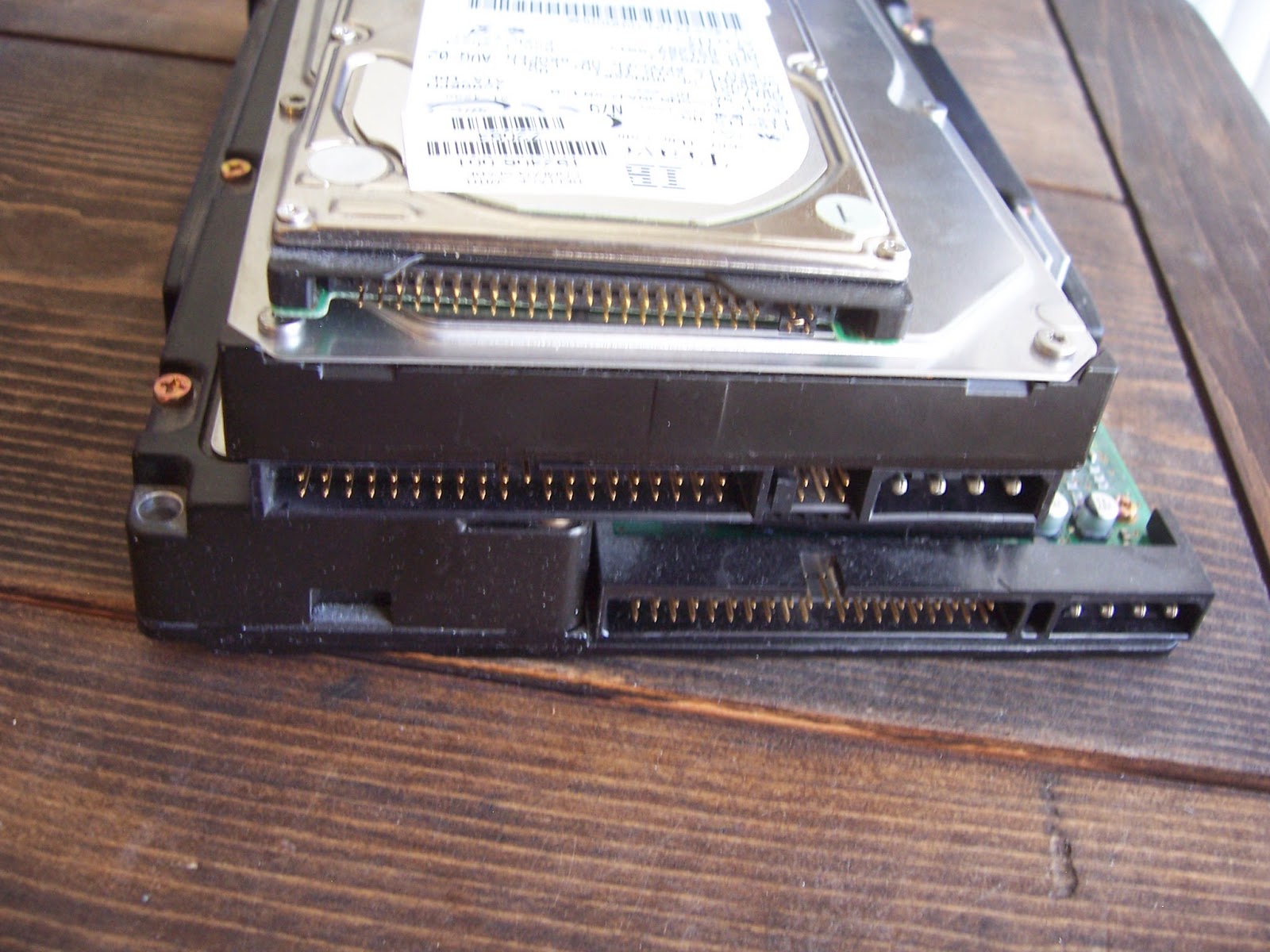
The PATA and Molex and jumpers found on the rear of IDE drives.  The Jumpers are for setting the drive as a Master or a Slave.

Here is a 2.5" SSD.

It uses SATA connections making for a much slimmer interface.

Optical drives, also known as ROM drives are almost fading out. Streaming, downloading, and flash memory are the new thing. ROM means “Read Only Memory”. That Blue-Ray movie you bought the other day is ROM. Meaning you cannot pop that disk into your computer and change the data on it. Same goes for CDs, DVDs, HDDVDs, etc. There are some CDs and DVDs that are re-writable but it still requires an entire disk erase to do. Another thing that I think phases out ROM is the ability to write ISOs, or disk images. Your HDD is faster than your ROM drive. You can use your ROM drive to rip an image of the disk to your HDD, you can then mount that disk's image in a virtual drive that doesn't really exist and your PC will play it as if you had just popped in the disk. Only now it will play it faster. And you don't actually have to keep the disk on hand anymore. Having ISOs can eat up HDD memory space quickly though because they are essentially uncompressed. And if your HDD burns out, so does your data on it. So there are pros and cons to everything.

Top Drive is an old PATA CDRW.  It can only read, write, and re-write CDs.  Below it is a BlueRay ROM.  It can read BlueRay.  It can also read, write, and re-write DVDs.  And it can also read, write, and re-write CDs.  Notice how the old CDROM has a headphone jack, two buttons, and a volume knob.  These old drives could play music CDs without software directly to that audio jack.  A feature I used frequently in my high-school tech classes.  Running Music software in addition to the CAD program I was learning slowed the system down.  This feature solved that for me.
Below are the PATA and SATA interfaces of the same drives.

One last thing.  Earlier I mentioned a QVL.  That is a "qualified vendor list".  Every motherboard has one.  Just because a MOBO says it takes DDR3 RAM does not mean it will take just any DDR3 RAM.  When you build a system I recommend doing the following: Decide on the form factor, find the best MOBO in that form factor that fits your budget and specs, download the QVL and purchase your CPU and RAM based off of what that list says is supported by the MOBO then go from there.  Returning hardware takes time and costs money.
Well, in a nutshell those are my hardware basics. Some time in the future I'll do a software basics. I'm not a programmer, nor do I write code. But I can install an operating system and have a pretty good library of free PC software that I would call a must have for those who want to tinker with PCs.

Byebye.